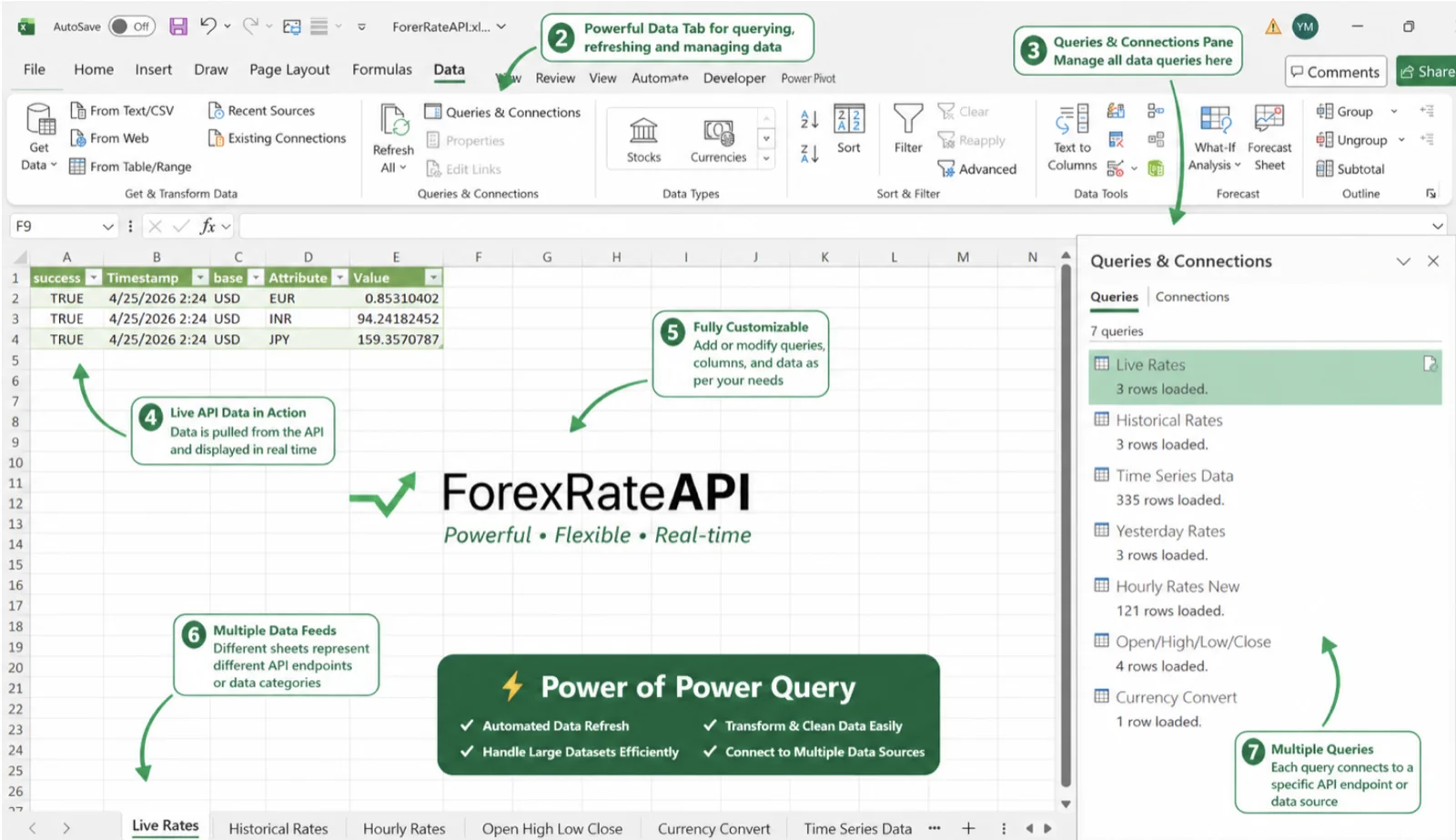
This guide walks you through using our pre-built ForexRateAPI Excel template to pull live and historical foreign exchange rates, OHLC data, time-series data and currency conversions straight into Microsoft Excel via Power Query. No code, no URL building — just paste your API key and click Refresh All.
Getting Started
Enter your API key. Open the workbook, go to the APIKEY tab and paste your ForexRateAPI key into the cell labeled API Key. This single cell connects every tab in the workbook to the live ForexRateAPI data. If you don't have a key yet, create a free ForexRateAPI account and copy the key from your dashboard.
Refresh the data. To pull the latest rates into every tab, go to Data → Refresh All in Microsoft Excel, or right-click any table and choose Refresh.
What each tab does:
- APIKEY → where you paste your API key (the one place you ever need to edit it)
- Live Rates → real-time exchange rates for any base + target currencies
- Historical → exchange rates for a specific past date
- Daily Data → daily rates over a date range (one row per day)
- Open High Low Close → OHLC breakdown for a single currency on a specific date
- Currency Convert → convert an amount from one currency to another at a chosen date's rate
- Time Series Data → exchange rate trends over a selected date range at regular intervals
Live Rates tab
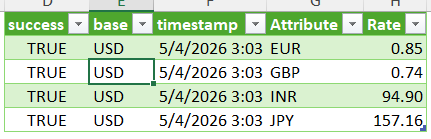
Retrieves the latest exchange rates for your selected currencies against a chosen base.
Editable cells
- Cell B4 — Base Currency: a 3-letter ISO code (e.g.,
USD, EUR, GBP)
- Cell B9 — Target Currencies: one or more 3-letter codes separated by commas (e.g.,
EUR,JPY,INR,GBP)
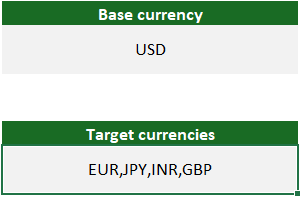
Worked example — get the latest EUR, JPY, INR and GBP rates against USD:
- Set B4 =
USD
- Set B9 =
EUR,JPY,INR,GBP
- Click Data → Refresh All
Historical tab
Retrieves exchange rates for a specific past date.
Editable cells
- Cell B4 — Base Currency (e.g.,
USD)
- Cell B9 — Target Currencies (comma-separated, e.g.,
EUR,JPY,INR,GBP,AUD)
- Cell B14 — Date (use your PC's date format, e.g.,
5/2/2026)
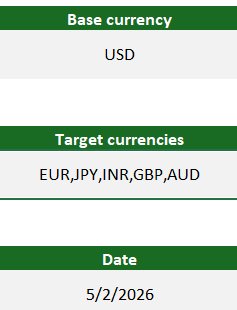
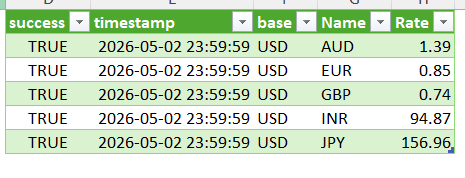
Worked example — major currency rates against USD on a specific historical date:
- Set B4 =
USD
- Set B9 =
EUR,JPY,INR,GBP,AUD
- Set B14 = your chosen date
- Click Data → Refresh All
Daily Data tab
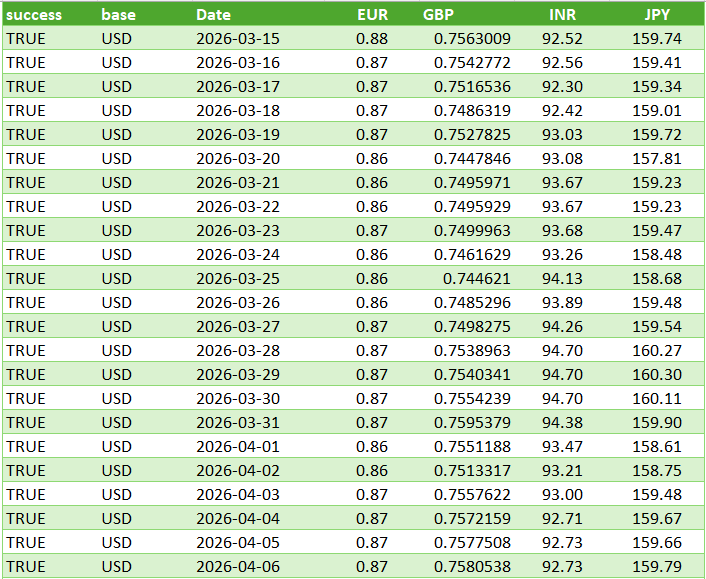
Pulls one row per day of exchange rates over a chosen date range — perfect for charting price history.
Editable cells
- Cell B3 — Base Currency
- Cell B8 — Target Currencies (comma-separated)
- Cell B13 — Start Date
- Cell B17 — End Date
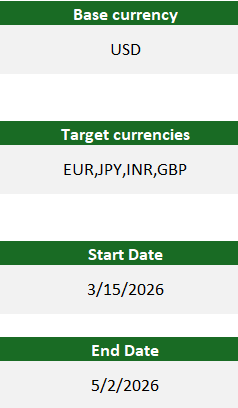
Worked example — daily EUR, JPY, INR and GBP rates across a date range:
- Set B3 =
USD
- Set B8 =
EUR,JPY,INR,GBP
- Set B13 = your start date
- Set B17 = your end date
- Click Data → Refresh All
Open High Low Close (OHLC) tab
Retrieves Open, High, Low and Close exchange rate values for a single target on a specific date.
Editable cells
- Cell B3 — Base Currency
- Cell B8 — Target Currency (single 3-letter code, e.g.,
EUR)
- Cell B13 — Date
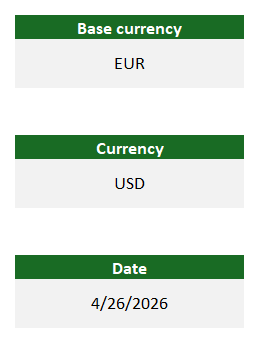
Worked example — EUR/USD OHLC on a specific date:
- Set B3 =
EUR
- Set B8 =
USD
- Set B13 = your chosen date
- Click Data → Refresh All

Currency Convert tab
Converts an amount from one currency to another at the exchange rate of a selected date.
Editable cells
- Cell B3 — Base Currency (the currency you're converting from)
- Cell B8 — Target Currency (the currency you're converting to)
- Cell B13 — Date
- Cell B17 — Amount to convert (e.g.,
10)
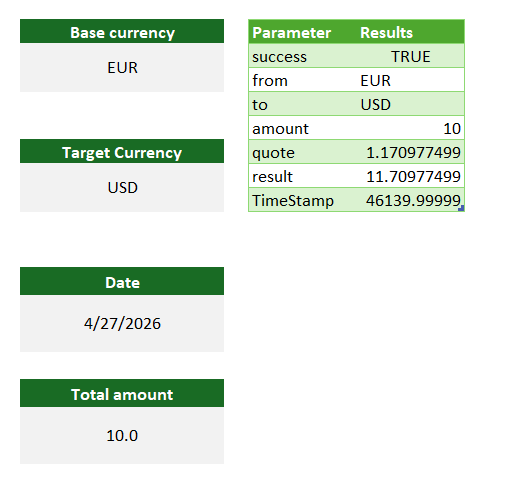
Worked example — convert 10 EUR to USD:
- Set B3 =
EUR
- Set B8 =
USD
- Set B13 = your chosen date
- Set B17 =
10
- Click Data → Refresh All
Time Series Data tab
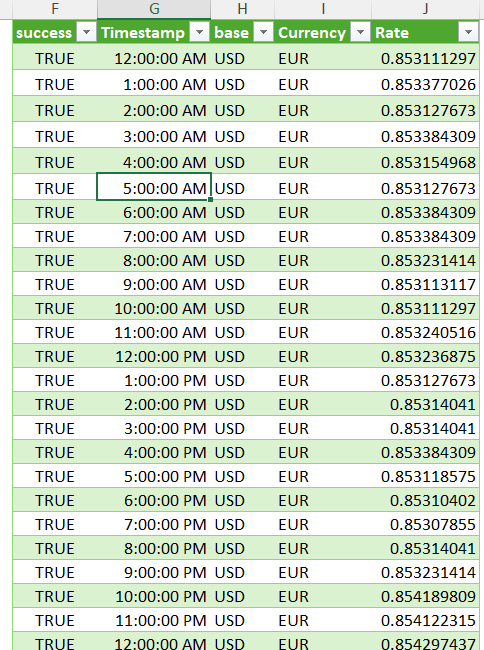
Retrieves exchange rates at regular intervals (e.g., hourly) within a selected date range — great for intraday charts and back-tests.
Editable cells
- Cell B3 — Base Currency
- Cell B8 — Target Currency (single code)
- Cell B13 — Start Date
- Cell B17 — End Date
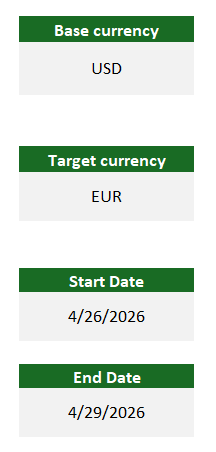
Worked example — hourly EUR/USD rates across a date range:
- Set B3 =
USD
- Set B8 =
EUR
- Set B13 = your start date
- Set B17 = your end date
- Click Data → Refresh All
Troubleshooting
Data isn't refreshing
- Confirm your API key is pasted correctly into the APIKEY tab (no extra spaces)
- Check your internet connection
- Try Data → Refresh All again
- Make sure your ForexRateAPI plan hasn't hit its monthly request limit
- Close and reopen the file, then refresh
"success = FALSE" error
A FALSE value in the success column means the API request failed. Common causes:
- Invalid API key → recheck the key on your dashboard and paste it again
- Wrong currency code → use valid 3-letter ISO codes (
USD, EUR, GBP, JPY, INR, etc.)
- Wrong date format → use your PC's date format
- Plan limit exceeded → wait for the monthly reset or upgrade your plan
- Missing input → ensure every required cell on the tab is filled in
